k8s스터디
WSL2 + k3s로 쿠버네티스 연습 환경 구성하기 (feat. (ngress → Gitea → ArgoCD)
2026년 2월 7일
1. 개요
Ingress-NGINX까지 구성한 이후, Kubernetes 리소스를 kubectl apply로 직접 배포하는 방식에서 벗어나 Git을 중심으로 클러스터 상태를 관리하는 GitOps 흐름을 직접 체감해보기 위해 실습을 진행했었습니다. 이번 실습의 목표는 단순히 ArgoCD를 설치하는 것이 아니라, “git push만 했을 뿐인 Kubernetes 클러스터 상태가 자동으로 변경되는 경험” 을 실제로 확인해보겠습니다.
이를 위해 아래와 같은 순차적으로 구성이 이미 구성되어야 합니다.
- GitOps 기준 저장소(Gitea) 구성
- Gitea에 Kubernetes 매니페스트 관리
- ArgoCD를 통해 Git 상태를 클러스터에 자동 반영
2. 전체 흐름 요약
(Local/ WSL)
GitOps repo에서 YAML 수정
  ↓
gitcommit/ git push
  ↓
Gitea (Git 기준 상태)
  ↓
ArgoCD (변경 감지 및 Sync)
  ↓
k3s 클러스터 상태 자동 변경
이 흐름에서 중요한 점은 배포 과정에 사람이 kubectl로 개입하지 않습니다.
3. ArgoCD 설치
kubectl create namespace argocdkubectl apply -n argocd \
-f https://raw.githubusercontent.com/argoproj/argo-cd/stable/manifests/install.yamlkubectl get pods -n argocd4. ArgoCD 접속 (NodePort)
- argoCD의 Node를 맞춰줌과 동시에 확인을 해봅니다.
kubectl patch svc argocd-server -n argocd \
  -p'{"spec":{"type":"NodePort"}}'
kubectl get svc -n argocd argocd-server- ArgoCD UI 접속 및 관리자 로그인
- 계정의 ID는
admin이고 PW는 아래와 같은 명령어를 통해 초기 비밀번호를 확인합니다.
- 계정의 ID는
kubectl get secret argocd-initial-admin-secret \
  -n argocd -o jsonpath="{.data.password}" |base64 -d
5. ArgoCD Application 생성 및 Gitea 연결
- Settings > Connect Repo
Type: git
Repository URL: http://gitea.local:<NodePort>/osh/gitops.git
Name: gitea-ops
Username: osh
Password: gitea 패스워드 입력- Application > New App
Application Name: hello
Project: default

Source:
  Repo URL: http://gitea.local:<NodePort>/osh/gitops.git
  Path: apps/hello # 클러스터 내 git 저장소 위치의 root 경로
  Revision: main

Destination:
  Cluster: https://kubernetes.default.svc
  Namespace: default

Sync Policy:
  ☑ Automatic
이 설정으로 ArgoCD는 Git 상태를 기준으로 클러스터를 자동 동기화가 됩니다.
7. git push → 자동 배포 체감해보기
cd ~/gitops-repo
vi apps/hello/deployment.yaml
# deployment의 replicas 갯수를 1개로 줄여 봅니다.
spec:replicas:2 → spec:replicas:1git add .
git commit -m "fix: hello에서 replicas 스케일을 1개로 줄입니다."
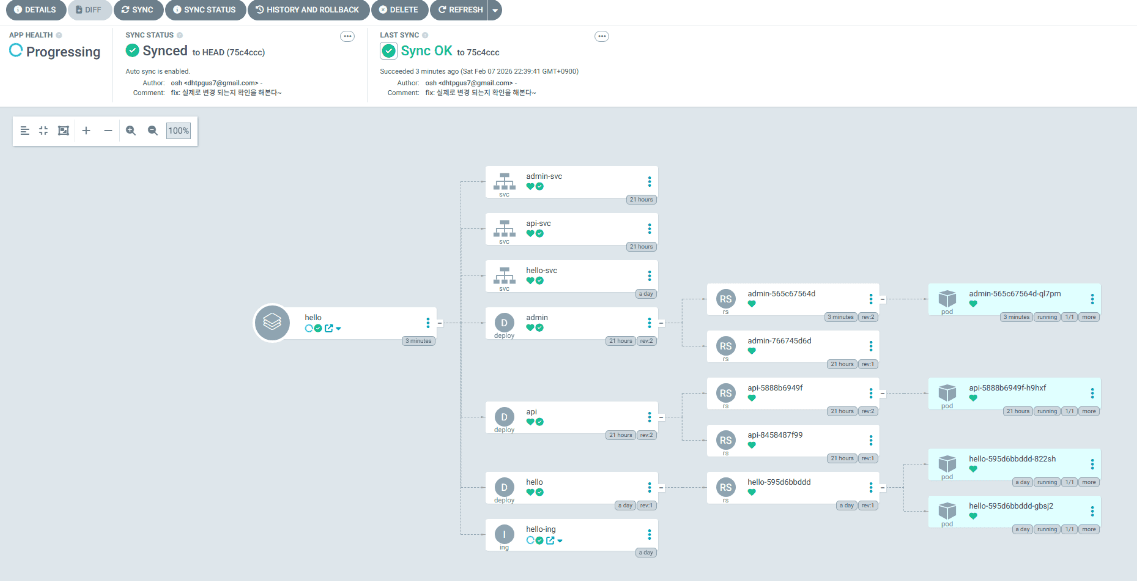
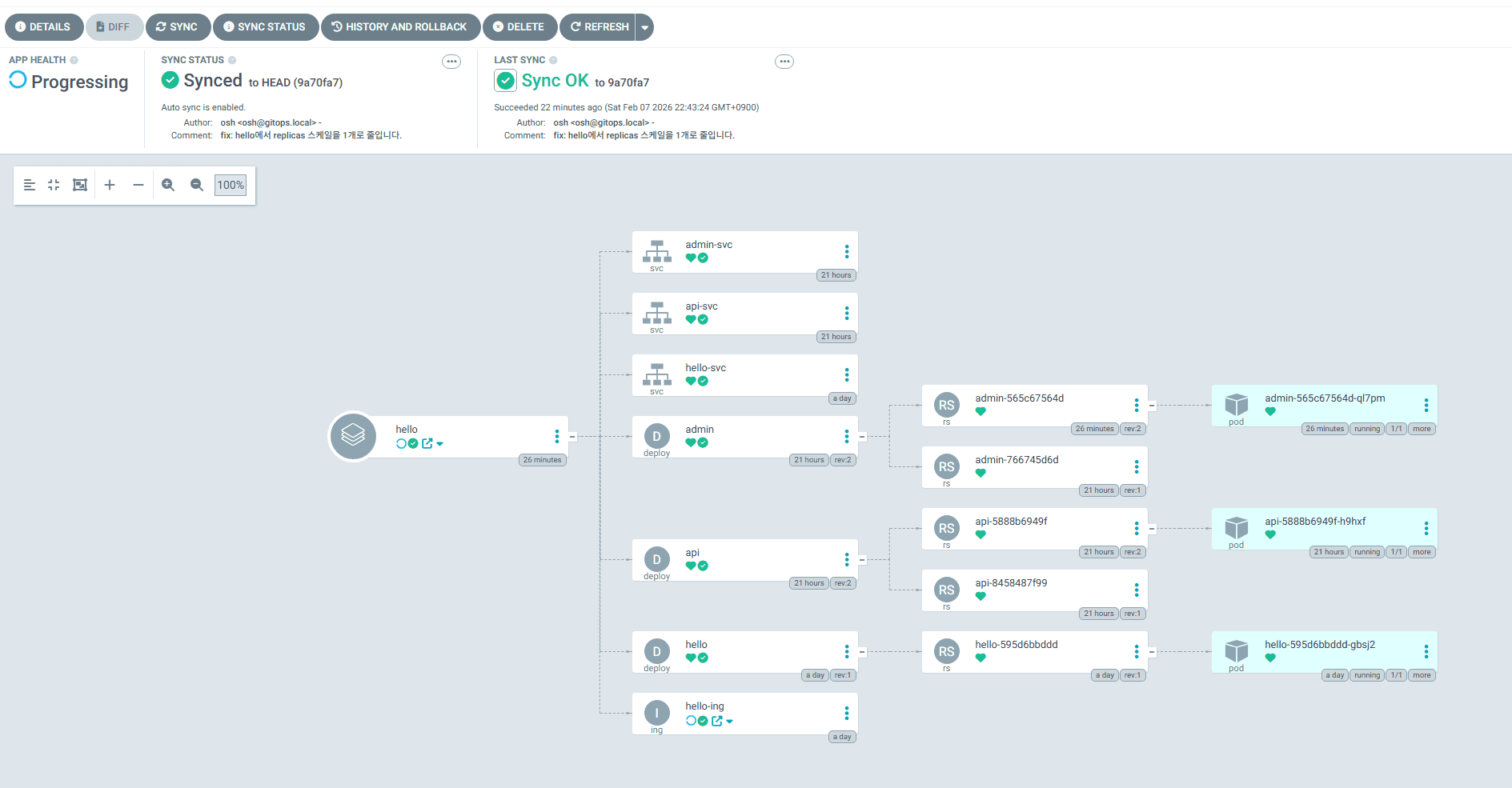
git pushkubectl get pods- kubectl로 배포 명령을 내리지 않았음에도 롤링 업데이트에 의해 Pod 수가 자동으로 변경됨을 확인
-
변경 전
-
변경 후
-